How a green screen video is structured
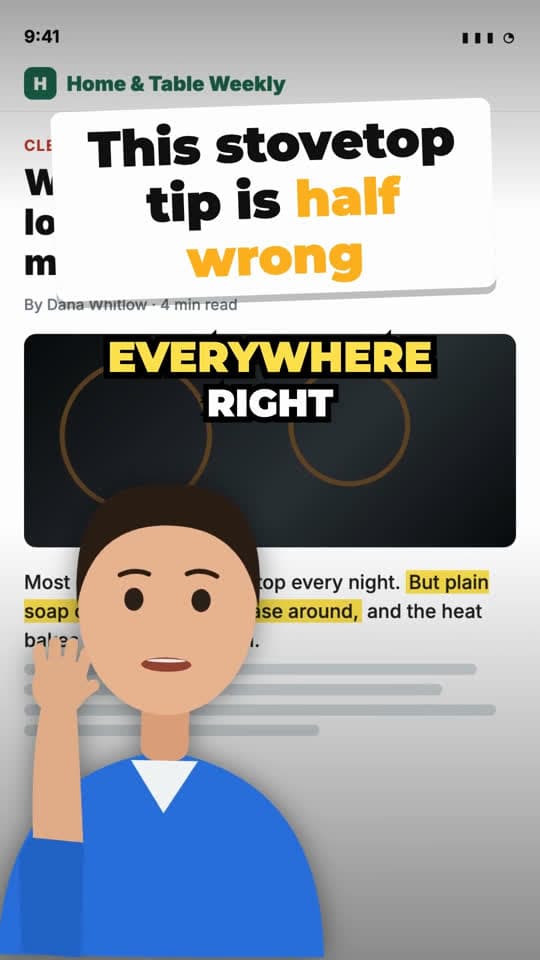
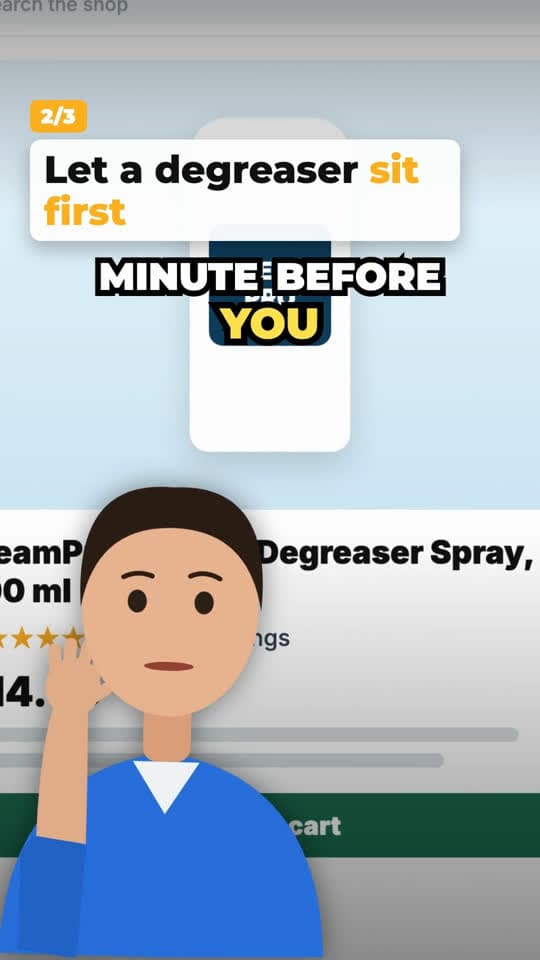
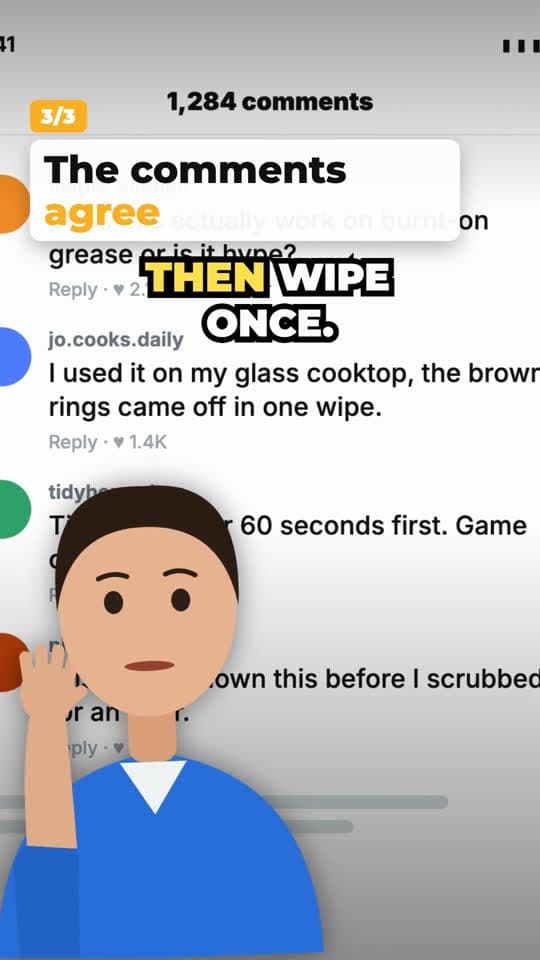
The sample render, beat by beat (about 21 seconds). Each point gets its own screenshot or its own zoom on the same one.
Layout sketch of the template. The frames at the top come from our own sample render.
| Beat | On screen | Voiceover |
|---|---|---|
| Hook0:00–0:05 | Sticker title over the article screenshot; presenter bottom left. | “This stovetop cleaning tip is everywhere right now, and it is half wrong.” |
| Problem0:05–0:09 | Point card 1 of 3; the view zooms to the paragraph in question. | “They are right about one thing. Dish soap alone just moves the grease around.” |
| Solution0:09–0:14 | Point card 2 of 3 over a product page. | “What actually works is a degreaser that sits for a minute before you wipe.” |
| Proof0:14–0:18 | Point card 3 of 3 over the comment section. | “And the comments say the same thing. Let it sit, then wipe once.” |
| Call to action0:18–0:21 | Follow card with a button. | “Follow for part two, where I test it on my own stove.” |
Why green screen commentary works
The viewer gets two things at once: the thing being discussed, full screen, and a person reacting to it. The screenshot gives your opinion something concrete to point at, and the zoom tells people exactly where to look. That is why the format suits reviews, myth-busting, “let's read the comments” and roasting a product page.
It is also cheap to make well. You don't need a studio, just a clear photo or short clip of yourself and a few screenshots. The work is in the script: a claim in the first seconds that people want to hear defended, then one point per screenshot.
What you upload
One to four screenshots or images you have the right to show, and one photo or short clip of yourself. A normal photo or clip sits in a rounded frame in a corner. For the classic cut-out look, upload a PNG or WebP with the background already removed. We don't remove backgrounds automatically yet.
Be careful with screenshots of other people: blur names and faces you don't have permission to show, and don't use private messages.
- Screenshots: an article, a product page, a comment thread, a chart
- Presenter: a photo or clip of you, or a transparent cut-out
- Point cards with a counter (1/3, 2/3…), word-by-word captions and a follow or shop card
A note on “green screen memes”
Plenty of people searching for green screen videos want a meme clip to paste into their own edit. This template is the other kind: your commentary over images you supply. We don't host meme clips or someone else's green screen footage.
When to use green screen
Good fit
- Reviews and reactions to a product page, an article or a post
- Myth-busting and “this advice is wrong” videos
- Sellers answering comments or common questions
Not a good fit
- When you have no rights to the screenshots you want to show
- Products that need hands-on footage: use the product demo template
How to make a green screen video
- 01
Break down a reference
Paste a commentary or reaction video you like. Its structure decides where your points go.
- 02
Choose Green screen commentary
Upload your screenshots and a photo or clip of yourself, and add a short brief.
- 03
Render
Pick a hook and a voice. Each video is 1 credit and comes out 9:16 with captions.
Green screen video questions
Do I need an actual green screen?
No. Use a normal photo or clip in the corner frame, or upload a cut-out PNG or WebP if you want to stand in front of the screenshot.
Does it remove my background?
Not yet. Remove it in any background remover first, save as PNG or WebP with transparency, and upload that.
Can I use my own voice?
Videos are voiced with an AI voice reading the script. Your photo or clip is the presenter in the corner.
How many screenshots can I use?
One to four. Each point can have its own screenshot, or the video can zoom to different parts of one.
Keep going
- Reddit Story Video GeneratorA post card on top, a moving background below, narrated with captions. No uploads needed.
- UGC Video With CaptionsYour phone clips, cut in order, with a hook title, captions and an end card.
- TikTok Hook GeneratorSee why a viral hook works, then get three hooks written for your product.
- PricingBreakdowns and scripts are free. You pay credits only for videos we render.
Make a green screen video
Sign up free, upload a screenshot and a photo, and render your first one.